> ## Documentation Index
> Fetch the complete documentation index at: https://autorender.io/docs/llms.txt
> Use this file to discover all available pages before exploring further.
# Recipes
> Store common transformation combinations as short, reusable t_ tokens.
Recipes let you save a full transformation string under a short name and apply it with a `t_` token. Instead of repeating a long token string across your app, you reference `t_thumbnail` and Autorender expands it to the stored transformation before processing.
> [!NOTE]
>
> Recipes are managed in your workspace settings. To create or change a preset, contact Autorender support with the recipe name and the transformation string you want it to expand to.
## How does it work?
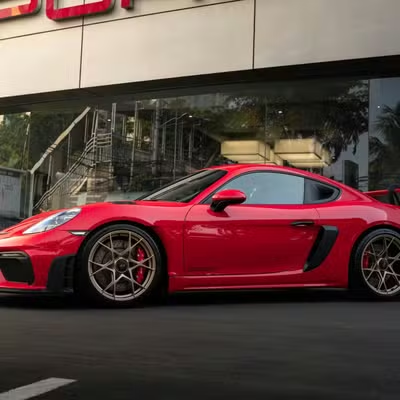
When a URL contains a `t_{name}` token, Autorender expands it to the stored transformation string, then applies any additional parameters in the same URL and delivers the result. A recipe and its expanded equivalent produce the same output.
> [tab] Using a recipe
>
> ```text theme={null}
> https://assets.autorender.io/LOKVTtKVGb/t_thumbnail/doc1/porsche.jpg
> ```
>
> 
> [tab] Full transformation
>
> ```text theme={null}
> https://assets.autorender.io/LOKVTtKVGb/c_fill,w_300,h_300,p_c/doc1/porsche.jpg
> ```
>
> 
Here `t_thumbnail` expands to `c_fill,w_300,h_300,p_c`, producing a **300×300 px** center-filled crop.
## How to use a recipe?
Add the `t_{name}` token to the transform segment, the same place you would put any other parameter. Autorender detects the `t_` prefix, expands the token, merges any extra parameters you pass, and delivers the processed asset.
You can layer additional transforms after the token — `t_thumbnail,e_blur:20` applies the thumbnail recipe and then a blur.
## E-commerce recipes
Standardize a product catalog by mapping each surface to a named recipe.
| Recipe name | Target output | Expands to |
| - | - | - |
| `t_product-card` | Grid display | `w_400,h_400,c_fill,e_auto_enhance` |
| `t_product-detail` | High-res preview | `w_1200,h_1200,c_fit,e_structure:30` |
| `t_hero-banner` | Desktop hero | `w_1920,h_1080,c_fill,e_saturation:25` |
| `t_social-share` | Open Graph (1.91:1) | `w_1200,h_630,c_fill,e_auto_enhance` |
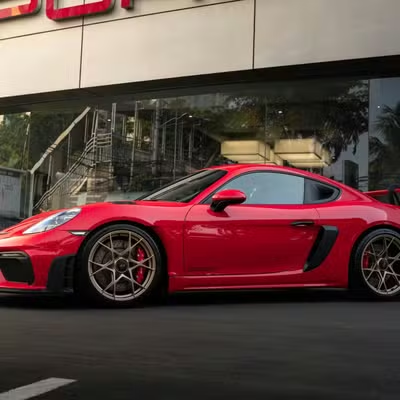
Use different recipes for main images and thumbnails so each surface stays consistent:
```html theme={null}
 ```
> [!TIP]
>
> Name recipes by intent, not by parameters (e.g. `t_mobile-optimized`, `t_product-card`), so a design change becomes a single recipe update instead of a find-and-replace across every URL in your app.
## Next steps
> [card] [Resize and aspect ratio](https://autorender.io/docs/transformations/resize-and-aspect-ratio.md)
>
> Build the sizing tokens your recipes expand to.
> [card] [Crop](https://autorender.io/docs/transformations/crop.md)
>
> Add crop modes and focus detection to a recipe.
> [card] [Effects](https://autorender.io/docs/transformations/effects/introduction.md)
>
> Bake enhancement and color effects into a preset.
> [card] [Introduction](https://autorender.io/docs/transformations/introduction.md)
>
> Review the full transformation parameter reference.
This documentation is built and hosted on [Mintlify](https://mintlify.com), a developer documentation platform.