

Key type: use a private key, kept in a server-side environment variable. These
operations include listing, renaming, and deleting, none of which a public key may do — it
returns
403 on everything except uploading. See
Create an API key.Remote server (recommended)
Autorender hosts the MCP server. There’s nothing to install and no local process to run — you point your client at one URL and authorize with your API key.This is a Streamable HTTP endpoint, the standard transport for remote MCP connections. Most clients handle authorization through a browser redirect on first use.
Client setup
Each tab below carries the exact config for one client. Use the connection URLhttps://api-mcp.autorender.io/sse in every case.
- Claude.ai
- Claude Code
- Cursor
- v0
Autorender is listed in the Claude directory — search Autorender under Connectors and click Connect, no URL to paste.To add it manually instead:
- In any chat, click the + button at the bottom of the input.
- Select Connectors, then click + → Add custom connector.
- Paste the connection URL:
- Click Connect. You are redirected to the Autorender authorization page.
- Enter your API key from Configurations → API Keys (app.autorender.io/api-keys).
Headless environments (CI, servers)
Where no browser is available to complete the authorization redirect, send your API key as a Bearer token on the connection instead:process.env.AUTORENDER_API_KEY and never hardcode it in a committed config file.
Authorization
On first connection you are redirected to the Autorender authorization page: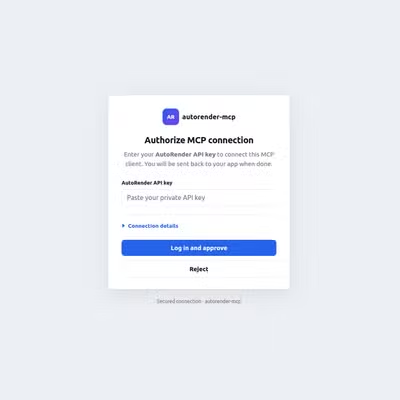 Enter your Autorender API key from Configurations → API Keys (app.autorender.io/api-keys). If you don’t have a key yet, see Create an API Key.
Available tools
The MCP server exposes 13 tools across three categories.Files
Multipart upload
For large files, in a three-step flow: start → upload parts → complete.Folders
Why use the MCP server?
- AI-driven transformations — the model picks the crop, effect, or format from context.
- No boilerplate — skip the API integration layer for common media tasks.
- Interactive testing — chat with your media library to experiment with transformation strings.
Next steps
Create an API key
Generate the key your MCP client authorizes with.
API reference
The same upload and file operations, called directly over HTTP.